Excel formula practice online, checked as you type
Type real formulas into the grid below and press Check: the tasks run from SUM to SUMIFS and XLOOKUP, and a wrong answer tells you what went wrong, like a range that stops one row early or a VLOOKUP without FALSE. Under it are a formulas cheat sheet, the lookup comparison and the errors you will meet. The free Android app has the full course, offline.
Excel formula practice
Total quantity of all items (column D).
Result
| Row | A | B | C | D |
|---|---|---|---|---|
| 1 | ||||
| 2 | ||||
| 3 | ||||
| 4 | ||||
| 5 | ||||
| 6 | ||||
| 7 | ||||
| 8 | ||||
| 9 |
Sample data. Standard English function names, the same as Excel and Google Sheets; commas between arguments.
The whole course in your pocket, offline
Nine tasks are a start. The Android app has three free tracks from your first cell to pivot tables, a live grid in every lesson, a timed Excel Test Series and a reference of 100+ functions, all offline:
- Three free tracks: Foundations, Everyday Excel and Job Ready
- A live grid in every lesson: type a formula, tap cells to insert references, drag to select a range, press Check
- Explanations of the classic mistakes: a range one row short, a missing $, VLOOKUP without FALSE, a typed number instead of a reference
- IF, IFS, AND, OR, IFERROR, COUNTIF, SUMIF, SUMIFS, VLOOKUP, HLOOKUP, XLOOKUP, INDEX and MATCH, dates, text cleaning, FILTER, UNIQUE, SORT and pivot tables
- Excel Test Series: 15 timed tasks in 15 minutes with a 70% pass mark, plus trap drills
- Daily challenge, streak, and mistakes that come back for review after 1, 3 and 7 days
- Case projects: budget, sales report, payroll, inventory, grades, marketing funnel
- Reference of 100+ functions with a sandbox grid, 61 keyboard shortcuts for Windows and Mac, a formula keyboard for phones

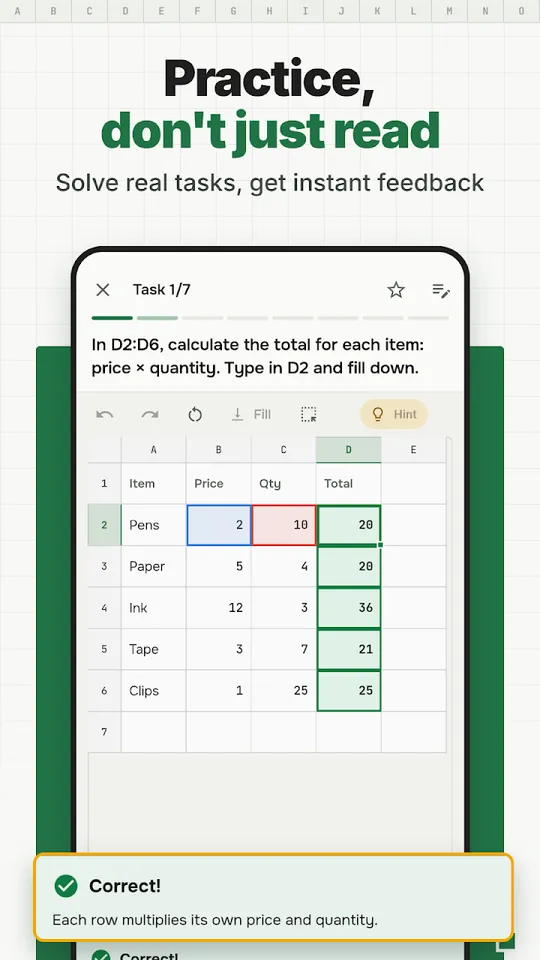
Real tasks, instant feedback 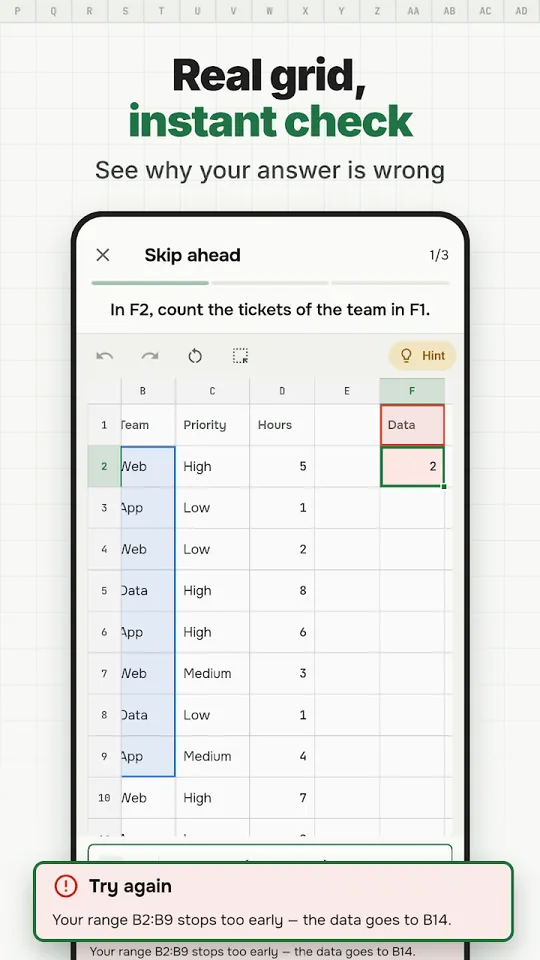
See why an answer is wrong 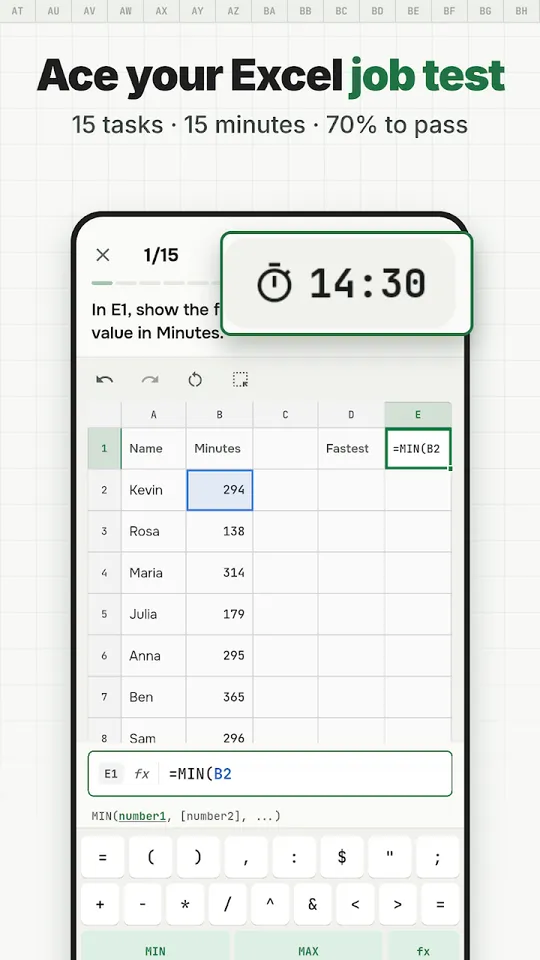
Timed job test practice 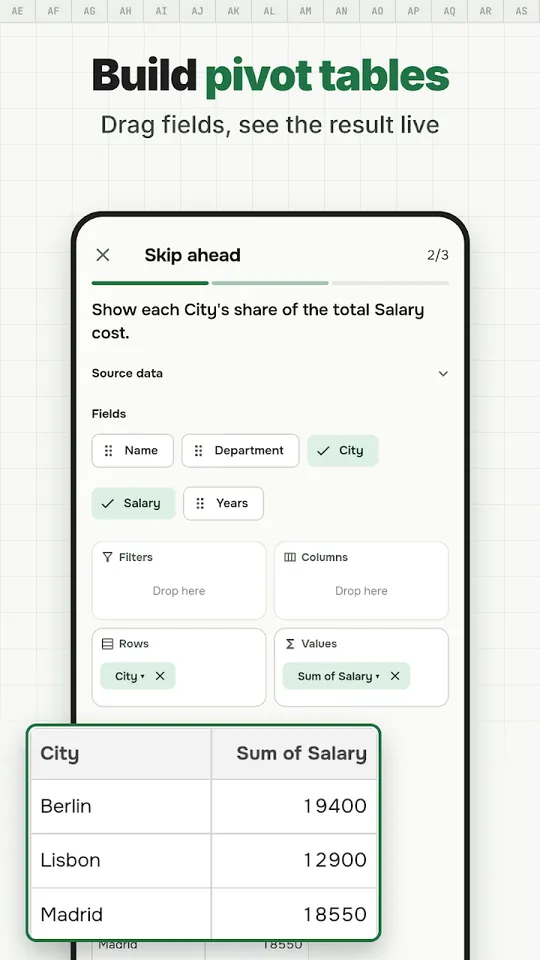
Build pivot tables 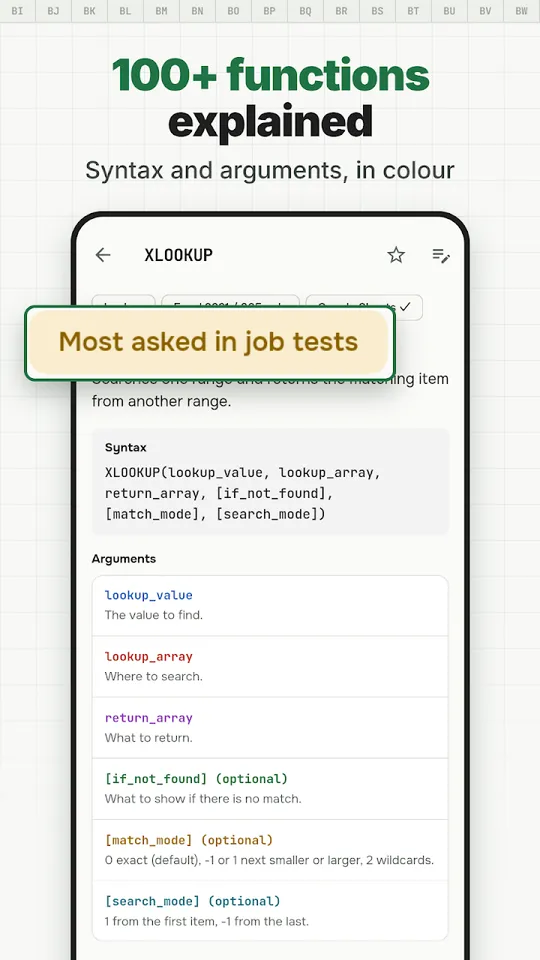
100+ functions explained 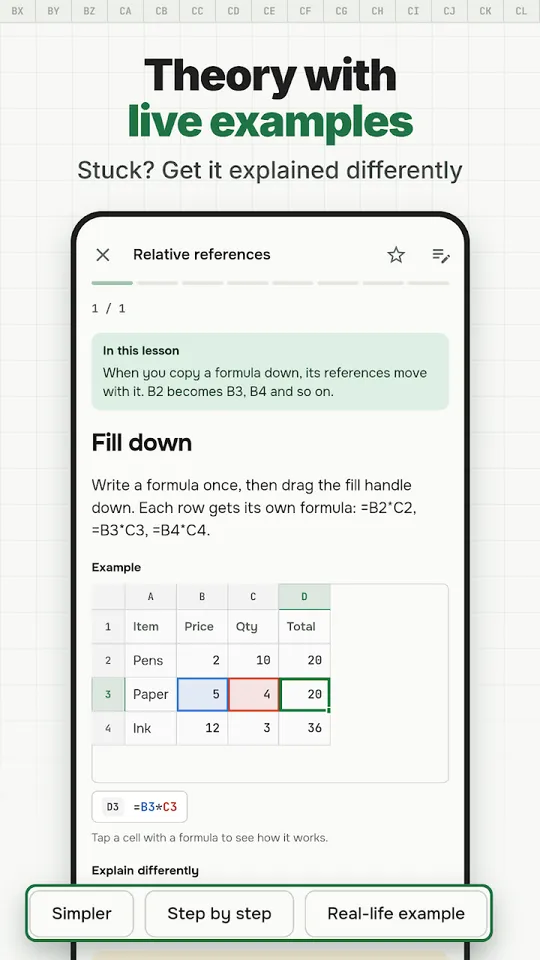
Theory with live examples 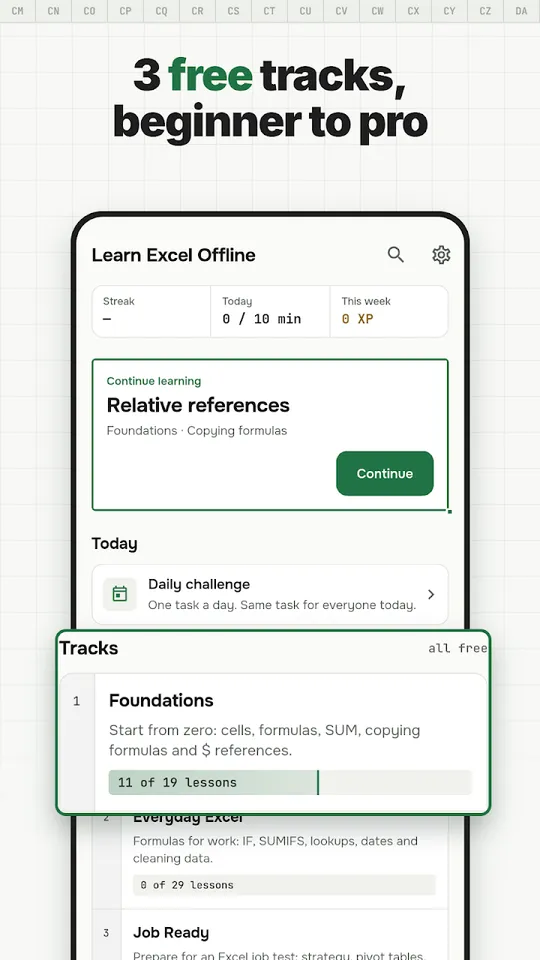
Three free tracks 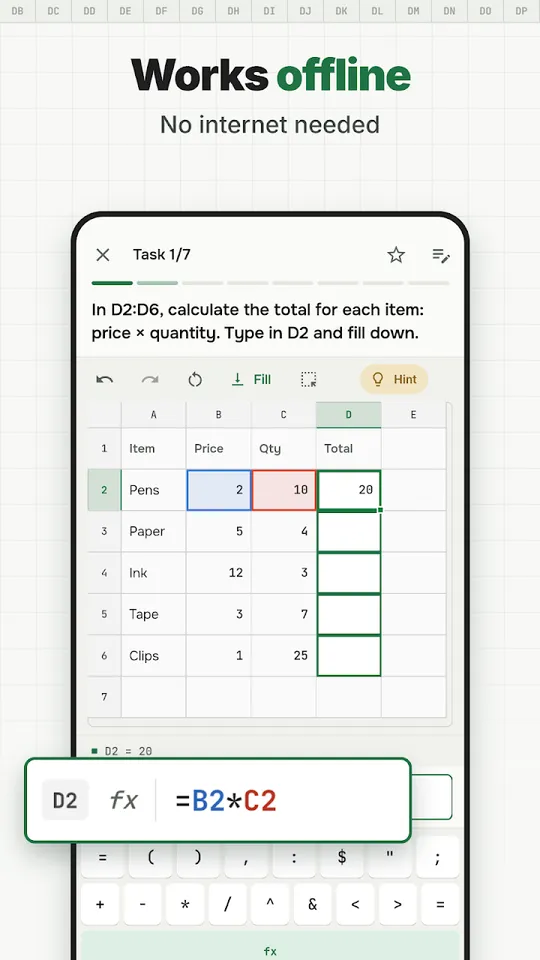
Works offline
Basic Excel formulas cheat sheet, with examples
These twelve functions cover most everyday spreadsheets and most beginner job tests. Every example runs on the practice table above, and the result column is computed by the same engine as the tool, so you can paste any of them into the sandbox and see it work.
| Function | Example | Result | What it does |
|---|---|---|---|
| SUM | =SUM(D2:D9) | 126 | Adds every number in a range |
| AVERAGE | =AVERAGE(C2:C9) | 3.9375 | Mean of the numbers; blanks and text are skipped |
| MIN / MAX | =MAX(C2:C9) | 8 | Smallest or largest number |
| COUNT / COUNTA | =COUNTA(A2:A9) | 8 | COUNT counts numbers, COUNTA counts any filled cell |
| ROUND | =ROUND(AVERAGE(C2:C9),2) | 3.94 | Rounds to a number of decimals |
| IF | =IF(D4<5,"Reorder","OK") | Reorder | One result if a test is true, another if not |
| COUNTIF | =COUNTIF(B2:B9,"South") | 3 | Counts cells that meet a condition |
| SUMIF | =SUMIF(B2:B9,"North",D2:D9) | 30 | Adds the cells whose row meets a condition |
| XLOOKUP | =XLOOKUP("Binder",A2:A9,C2:C9) | 6 | Finds a value and returns the matching one from another column |
| INDEX + MATCH | =INDEX(D2:D9,MATCH("Tape",A2:A9,0)) | 15 | Lookup that works in any direction and in every Excel version |
| TRIM | =TRIM(" two spaces ") | two spaces | Removes extra spaces from imported text |
| LEFT / MID | =LEFT(A2,4) | Note | Takes characters from the start or middle of text |
How to write a formula in Excel
- Start with an equals sign. Without =, Excel treats what you type as text.
- Point at cells instead of typing numbers. =C3*D3 updates when the price changes; =1.2*40 never does. Job tests check for this.
- Name the range with a colon. D2:D9 means every cell from D2 down to D9. The most common slip is a range that stops one row too early.
- Separate arguments with commas. Some European versions of Excel use semicolons instead; the function names stay the same in English Excel and Google Sheets.
- Press Enter, then fill down. Drag the small square at the corner of the cell to copy the formula to the rows below.
Relative and absolute references: what the $ sign does
When you fill a formula down, its references move with it: =C2*D2 in row 2 becomes =C3*D3 in row 3. That is a relative reference, and it is what you want most of the time. When every row must point at the same cell, such as a tax rate in F1, lock it with dollar signs: =C2*$F$1. Press F4 after a reference to cycle through $F$1, F$1 (row locked), $F1 (column locked) and F1.
A missing $ is the classic reason a formula is right in the first row and wrong in every row below it.
IF formula with multiple conditions
IF takes a test, a value for true and a value for false: =IF(D4<5,"Reorder","OK") gives Reorder. To test two conditions at once, put AND or OR inside the test:
=IF(AND(B2="North",D2>10),"Big North order",""): both must be true (Big North order).=IF(OR(D2<5,C2>7),"Check","OK"): either is enough.=IFS(D2>=20,"High",D2>=10,"Medium",TRUE,"Low"): several bands without nesting IF inside IF (Medium).
Text in a formula always goes in double quotes; numbers and cell references never do.
COUNTIF, SUMIF and SUMIFS
COUNTIF counts the rows that meet one condition and SUMIF adds a second column for those rows. SUMIFS and COUNTIFS take several conditions, and note the order: in SUMIFS the range to add comes first, in SUMIF it comes last.
=COUNTIF(D2:D9,">10"): items with more than 10 units (5). Comparison criteria go in quotes.=SUMIF(B2:B9,"North",D2:D9): units sold in the North (30).=SUMIFS(D2:D9,B2:B9,"South",C2:C9,"<2"): South items under 2 (65).=COUNTIF(A2:A9,"S*"): the * wildcard matches any text, so this counts items starting with S (2).
VLOOKUP vs XLOOKUP vs INDEX MATCH
All three find a row by a key and return a value from it. The differences decide which one to use:
| Formula | Result | Good to know |
|---|---|---|
=VLOOKUP("Binder",A2:D9,3,FALSE) | 6 | Works everywhere. The key must be in the first column, the column number breaks when you insert a column, and without FALSE it does an approximate match. |
=XLOOKUP("Binder",A2:A9,C2:C9) | 6 | Exact match by default, looks left or right, has a built-in "not found" value. Excel 365, Excel 2021 and later, and Google Sheets. |
=INDEX(C2:C9,MATCH("Binder",A2:A9,0)) | 6 | Any direction, any Excel version. MATCH needs 0 for an exact match. Still the favourite of many interviewers. |
A VLOOKUP that returns a wrong value instead of an error is almost always a missing FALSE. One that returns #N/A on a value you can see is usually an extra space or a number stored as text.
Why Excel formulas are not working
| You see | Usual cause | Fix |
|---|---|---|
| #NAME? | A misspelled function (=SUMM) or text without quotes (=COUNTIF(B2:B9,South)) | Fix the spelling; put text in double quotes |
| #N/A | A lookup found no match: a typo, an extra space, or the key is not in the first column | Check the value with TRIM; for VLOOKUP, start the table at the key column |
| #VALUE! | Text where a number is needed, for example a number stored as text | Convert the column to numbers; check for spaces |
| #DIV/0! | Dividing by an empty or zero cell | Wrap it: =IFERROR(A2/B2,0) |
| #REF! | A deleted cell, or a column number wider than the VLOOKUP table | Undo the delete or widen the range |
| Formula shows as text | The cell was formatted as Text before you typed, or the formula has a space before = | Format as General, then re-enter the formula |
| Formula not calculating | Calculation is set to Manual | Formulas, Calculation Options, Automatic (or press F9) |
How to prepare for an Excel test for a job interview
Many employers test Excel before hiring, usually as a timed set of tasks in a real workbook. What gets checked at the basic and intermediate level is the same list again and again:
- SUM, AVERAGE, COUNT and percentages written with cell references, not typed numbers.
- Absolute references: a formula that fills down correctly with $ in the right place.
- IF with AND or OR, and IFERROR around anything that can fail.
- COUNTIF, SUMIF and SUMIFS for reports by region, month or person.
- VLOOKUP with FALSE, or XLOOKUP, or INDEX and MATCH, between two tables.
- Text cleaning with TRIM, LEFT, MID and SUBSTITUTE; dates with EOMONTH and NETWORKDAYS.
- A pivot table that summarises a column by another, and sorting and filtering.
Practise against a clock. The tasks above take a minute each once you know them; in a test the pressure comes from the time limit, not the formulas. Read each question twice, check your range ends on the last row, and check the result against a rough sum in your head.
Questions
Where can I practice Excel formulas online for free?
Right here: the practice grid at the top of this page has nine checked tasks and a free sandbox, with no sign-up. Each wrong answer gets an explanation of the likely mistake.
What Excel formulas should I learn first?
SUM, AVERAGE, MIN, MAX and COUNT, then IF, then COUNTIF and SUMIF, then a lookup: XLOOKUP, or VLOOKUP with FALSE, or INDEX and MATCH. Together they cover most everyday sheets and most beginner job tests.
Is XLOOKUP better than VLOOKUP?
Usually, yes. XLOOKUP matches exactly by default, can look left and does not break when you insert a column. It needs Excel 2021, Excel 365 or Google Sheets; for older versions use INDEX and MATCH.
What is on an Excel test for a job interview?
Most basic and intermediate tests ask for formulas with cell references, absolute references, IF, COUNTIF and SUMIF, a lookup between two tables, text cleaning and a pivot table, usually against a time limit.
Do these formulas work in Google Sheets?
Yes. The functions on this page use the standard English names, which are the same in Google Sheets and English versions of Excel.
Does the Learn Excel Formulas app work offline?
Yes. Every lesson, the test series and the reference work without internet. There is no account; progress stays on your device.
Is the app free?
Yes. The three tracks are free and the listing shows no in-app purchases; the app shows ads. It is an independent app, not made by Microsoft.

Practise Excel anywhere, even without internet
Free on Android, with ads. No account and no daily limits; progress stays on your phone. Independent app, not affiliated with Microsoft.
Facts from the Google Play listing, last checked .