fetchpriority=high for the LCP image
What fetchpriority does, when to put high on the LCP image and low on carousel slides, how it pairs with preload, and which browsers support it.
· 3 min read
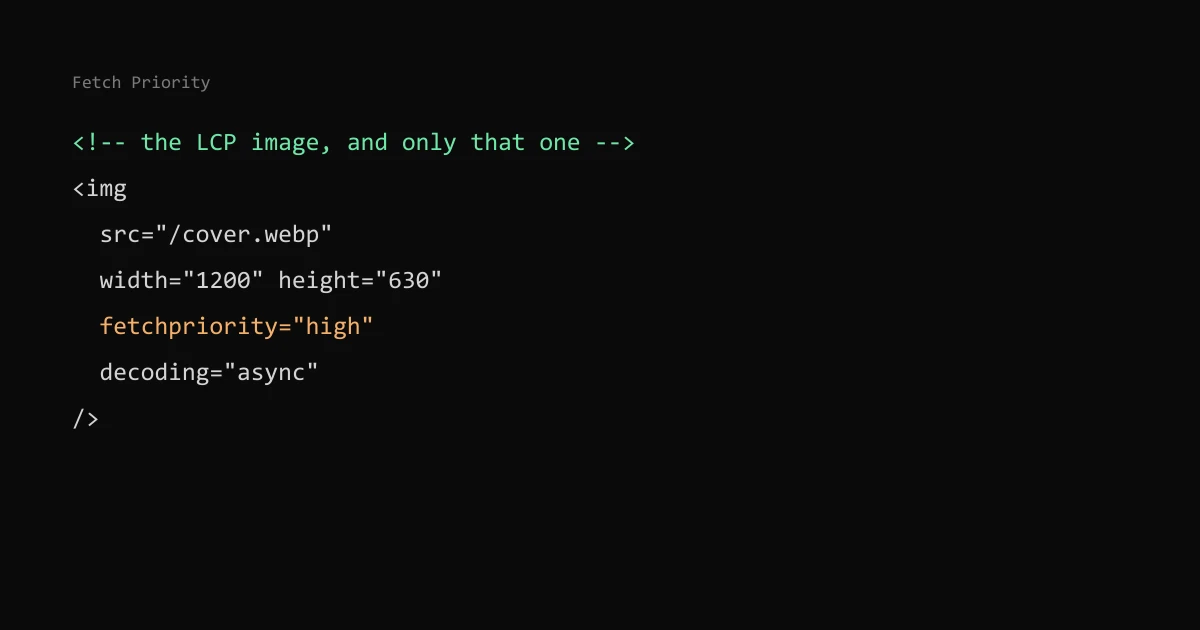
Add fetchpriority="high" to the image that will be your Largest Contentful Paint, usually the hero or the article cover. Browsers start images at low priority and raise the visible ones only after layout; the attribute lets the LCP image start high straight away. Put it on one image, not many, and never lazy-load the LCP image.
This site sets it on each blog post's cover and on the main media frame of Lab pages, and nowhere else.
What the attribute does#
web.dev's Fetch Priority article describes three values: high, low and the default auto. It calls the attribute "a hint, not a directive": the browser moves its own priority up or down when its heuristics allow, and can ignore you.
It works on <img>, <link> and <script>, and as the priority option of fetch(). The same article lists support from Chrome and Edge 102, Firefox 132 and Safari 17.2. Browsers that do not know the attribute ignore it, so it is safe to add.
The LCP image#
<img
  src="/blog/my-post/cover.webp"
  width="1200"
  height="630"
  alt="..."
  fetchpriority="high"
  decoding="async"
/>
In React the prop is fetchPriority. Keep width and height so the image reserves space; see CLS and layout shift.
The article's case study is Google Flights, where Fetch Priority on the LCP background image moved LCP from 2.6 s to 1.9 s. That is Google's number, not mine, and the gain depends on how many requests compete with the image. On a light page the browser may already fetch it early, and the attribute changes little.
Background images and preload#
A CSS background image is not found until the CSS is parsed and the element laid out. If it is the LCP element, the article advises preloading it with high priority:
<link rel="preload" as="image" href="/hero.webp" fetchpriority="high" />Preload controls discovery and fetchpriority controls priority, so they work together. Where you can, a real <img> in the HTML is the better fix than a background.
Lowering priority#
fetchpriority="low" helps when other images compete with the important one. For a carousel, the article suggests high on the first visible slide and low on the rest, because off-screen slides near the viewport can be boosted even with loading="lazy". The same applies to decorative images above the fold that are not the LCP.
fetch() requests default to high priority, so background data loads can pass { priority: "low" }.
Mistakes to avoid#
- Setting
highon several images. The browser then has nothing to rank, and the real LCP image competes with the others again. loading="lazy"on the LCP image. Lazy images wait for layout before they load, which delays the one image you want first.- Expecting it to fix a heavy file. Priority changes when the download starts, not how long it takes. Compress the image first: the Compress Image to Size tool finds the best quality under a target size, and AVIF, WebP or JPEG covers the format.
The article also notes that CDNs do not implement HTTP/2 and HTTP/3 prioritisation the same way, so test on your own host. The Network panel in Chrome DevTools has a Priority column that shows the priority each request got.