Compress an image to 100 KB or any size
How to compress an image to 100 KB or any limit: a binary search on JPEG and WebP quality, when to scale down, and sizes I measured on four real images.
· Updated · 8 min read
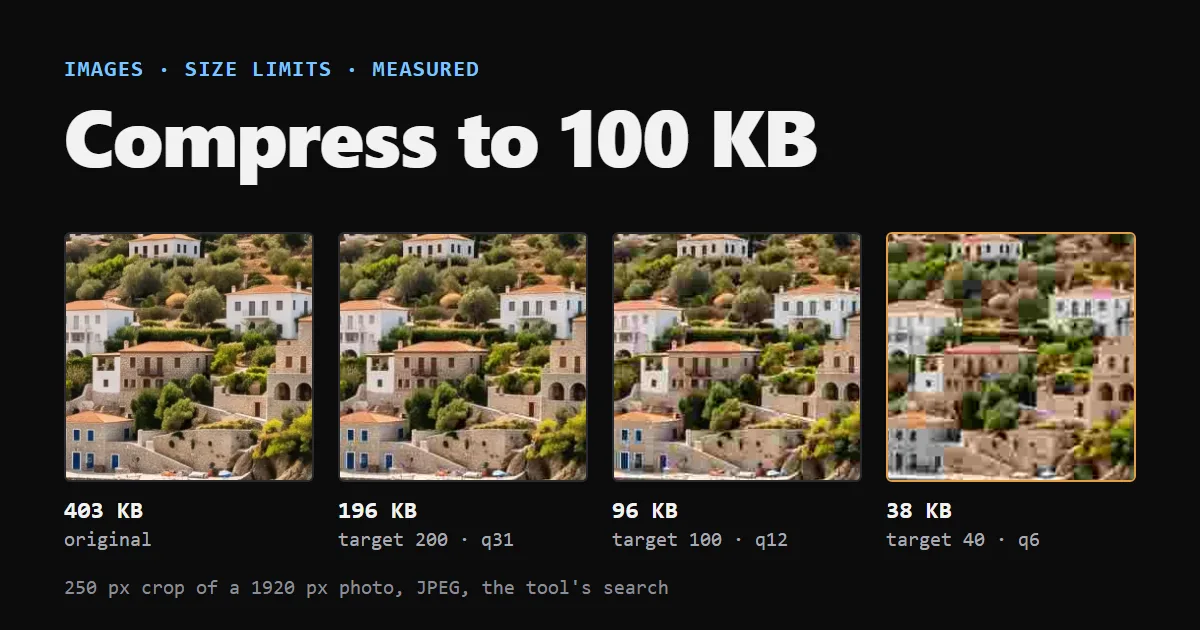
To compress an image to 100 KB, find the highest JPEG or WebP quality whose file stays under 100 KB, and shrink the pixel dimensions only if even a very low quality is too big. File size grows with quality, so a binary search finds that quality in at most nine encodes instead of repeated guesses with a slider.
I built this search into my Compress Image to Size tool. For this post I ran its real search code on four images from my own site at 40, 100 and 200 KB, and I report what came out, including a result I did not expect.
Why a quality slider alone is a blunt tool#
Quality is not a size dial. I encoded one 1920 × 1072 photo (the hero of my Greek Sail demo) as JPEG at seven quality settings:
| JPEG quality | File size |
|---|---|
| 5 | 44.3 KB |
| 10 | 82.6 KB |
| 20 | 143.5 KB |
| 30 | 191.6 KB |
| 50 | 268.1 KB |
| 75 | 405.1 KB |
| 95 | 915.2 KB |
The curve is steep at the top: going from 75 to 95 adds 510 KB, going from 10 to 20 adds 61 KB. The same quality number also gives very different sizes on different pictures, as the table below shows. There is no quality such as "70" that lands near 100 KB. You have to search for it per image, and that is tedious by hand.
The search: highest quality that fits#
The browser exposes quality as a number from 0 to 1 in canvas.toBlob() for image/jpeg and image/webp. MDN says the user agent uses its default quality if the value is missing or outside that range. The tool's search, in logic.ts:
- Encode at the maximum quality (0.95). If it fits, stop.
- Encode at the minimum quality (0.05). If that does not fit, scale the image by 0.85 and start again.
- Otherwise bisect between 0.05 and 0.95 for seven steps and keep the highest quality that fit.
Two endpoint encodes plus seven bisection steps is nine encodes, and the range shrinks to 0.9 / 128, under one quality point. The tool runs every encode on a canvas in your browser, so nothing is uploaded.
What I measured#
The tool encodes with a browser canvas, which needs a DOM, so I could not run it as is. I imported the real fitToTarget function from src/tools/compress-image/logic.ts, with its defaults, and replaced only the encoder with sharp 0.35.5: quality is round(q × 100), resizing uses Lanczos, and transparency is flattened onto white because JPEG has no alpha. Chrome's own encoder is a different implementation, so the tool in your browser will land on slightly different bytes and qualities. The search and its decisions are the same.
The four sources are files from this site, all WebP: three photos from my Lab demos and one phone screenshot from an app page. Sizes are in KB of 1024 bytes, the same unit the tool uses.
| Image (source) | Target | Quality | Dimensions | Result |
|---|---|---|---|---|
| Hero photo (1920 × 1072, 403 KB) | 40 KB | 6 | 1632 × 911 | 37.7 KB |
| 100 KB | 12 | 1920 × 1072 | 96.2 KB | |
| 200 KB | 31 | 1920 × 1072 | 195.8 KB | |
| Food photo (1200 × 1200, 175 KB) | 40 KB | 7 | 1200 × 1200 | 36.9 KB |
| 100 KB | 28 | 1200 × 1200 | 98.6 KB | |
| 200 KB | 73 | 1200 × 1200 | 198.4 KB | |
| Portrait photo (1051 × 1400, 218 KB) | 40 KB | 5 | 1051 × 1400 | 34.0 KB |
| 100 KB | 18 | 1051 × 1400 | 99.1 KB | |
| 200 KB | 52 | 1051 × 1400 | 199.4 KB | |
| App screenshot (540 × 1213, 48 KB) | 40 KB | 64 | 540 × 1213 | 39.8 KB |
| 100 KB | 95 | 540 × 1213 | 99.0 KB | |
| 200 KB | 95 | 540 × 1213 | 99.0 KB |
Three things stand out:
- The same target needs very different qualities. For 100 KB the answers are 12, 18, 28 and 95. A detailed photo needs a lower number than a smooth one.
- The search never goes above quality 95. The screenshot is already 48 KB as WebP, yet the 100 KB and 200 KB targets both returned a 99.0 KB JPEG, twice the size of the file I started with. If your file is already under the limit, leave it alone.
- A 100 KB result can be 101.5 KB. The portrait photo came out at 99.1 KB of 1024 bytes, which is 101,518 bytes. A form that counts 1 KB as 1000 bytes rejects it. Aim a few percent under the limit when you do not know which unit the form uses.
When quality is not enough, scale down#
At 40 KB, the hero photo shows the weak spot. At full size even quality 5 gives 44.3 KB, so the search scaled it once, to 1632 pixels wide, and found quality 6. That meets the target and looks bad: the crop at the right of the cover is the result, with visible blocks and colour smearing. The search keeps as many pixels as it can and gives up quality first.
I took the same photo to smaller widths and let the search pick the quality, with the dimensions fixed:
| Width | Quality found | Size |
|---|---|---|
| 1920 | 5 (does not fit) | 44.3 KB |
| 1632 | 6 | 37.7 KB |
| 1280 | 10 | 38.5 KB |
| 960 | 19 | 39.8 KB |
| 800 | 31 | 39.2 KB |
I enlarged the 960 pixel version back to 1920 and compared it with the quality 6 one. The 960 pixel one is soft but clean, and the 1632 pixel one is blocky. I prefer soft to blocky, but that is a visual judgement on one photo, and I did not compute a quality metric. What I take from it: when the target is very small for the picture, resize to the width the image is displayed at first, with the Image Resizer, and then compress. That is also the logic behind srcset and sizes: never ship more pixels than the screen shows.
PNG and screenshots#
PNG is lossless, so it has no quality setting to search. To get a PNG under a limit you have four options: convert it to JPEG or WebP, reduce the number of colours, scale it down, or all of these together. I tried each on two screenshots: the app screenshot from the table above (540 × 1213) and one of my blog covers, a dark UI card (1200 × 630).
| Version | App screenshot | Blog cover card |
|---|---|---|
| PNG, compression level 9 | 237.2 KB | 101.3 KB |
| PNG, 8-bit palette | 119.3 KB | 49.2 KB |
| PNG, 16-colour palette | 87.3 KB | 25.8 KB |
| PNG, half the width | 78.2 KB | 30.9 KB |
| WebP, lossless | 162.7 KB | 70.4 KB |
| JPEG, quality 95 | 99.0 KB | 70.6 KB |
| JPEG, quality 80 | 53.3 KB | 41.8 KB |
| WebP, quality 80 | 26.0 KB | 16.3 KB |
The first column has 17,145 distinct colours, because the screenshot came from a lossy WebP, so a real PNG capture would have fewer and probably compress better. Even so, the order is clear. Lossy WebP is the smallest for flat interface graphics, and a palette is the best way to keep PNG. At quality 80 the JPEG is 2.0 and 2.6 times the size of the WebP, though the two quality scales are not equivalent, so that compares bytes and not looks. The palette PNGs come from sharp's palette option. A 16-colour palette suits images with few colours, and I did not look at how the 16-colour versions render.
My tool picks WebP output for PNG sources when the browser can encode it. Google's WebP docs describe lossy WebP as a quality factor from 0 to 100, where a small factor gives a smaller file at lower quality, and a separate lossless mode. A browser that cannot encode the type falls back to PNG, which MDN documents for toBlob(). Safari before 17 cannot encode WebP, so the tool disables that option there. For the format choice itself, see AVIF, WebP or JPEG.
Why forms ask for a limit#
I have not found a published reason for a specific form's number, and the limits I see on forms are not consistent, so I would not guess at one. Treat the number as a hard rule of that form, not as a statement about quality. Check whether the form says KB or MB, and whether it also names the formats it accepts, since many take only JPEG or PNG.
EXIF and metadata#
Phones write orientation, camera data and sometimes the location into a photo's EXIF block. Compressing in a canvas touches this in two ways:
- The tool decodes the file with
createImageBitmap()and its defaultimageOrientation: "from-image", which MDN describes as orienting the image according to its EXIF orientation. The rotation is baked into the pixels, so the result is not sideways without EXIF. - The output is a new file made from pixels, so the original EXIF block is not copied. The tool's page says this, and MDN notes that the canvas export carries a 96 dpi resolution tag. I did not test a real phone photo in a browser.
In sharp I checked the same behaviour: a JPEG that I gave an EXIF block with a make and a copyright field lost it on a default re-encode and kept it only when I added keepExif(). That is sharp, not Chrome.
Limits of this post#
- The numbers come from sharp 0.35.5 driving the real search code, not from a browser run, so the tool on your machine will differ by a few percent.
- Four images are a small sample. Three are photos from my Lab demos and one is a screenshot, and all four were WebP before I started, so they had been compressed once already.
- I judged sharpness by eye on one crop and measured no quality metric such as SSIM.
- I did not test colour profiles, so a wide-gamut photo may shift when it is redrawn on a canvas.
- I have not measured how many bytes a phone's EXIF block takes.